




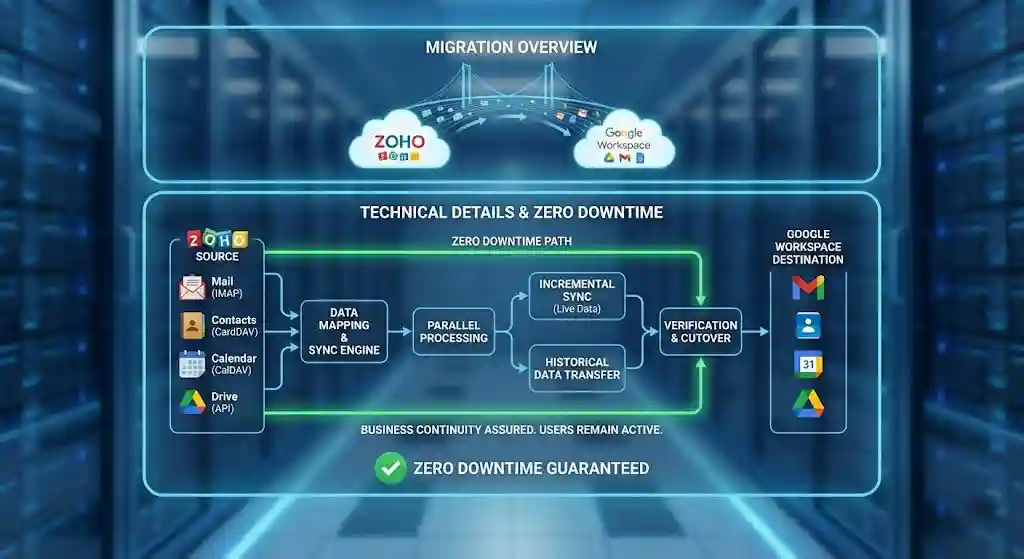
Transitioning your enterprise email infrastructure from Zoho Mail to Google Workspace is a strategic move that unlocks advanced collaboration through Google Drive, Meet, and Docs. However, moving years of corporate data requires precise technical execution to prevent data loss, bounce-backs, or productivity bottlenecks.
At namastu.com (an initiative of TARA TECHNOCRACY – Transforming Through Tech), we execute seamless cloud migrations daily. This guide outlines the exact technical roadmap our engineers use to migrate organisations from Zoho Mail to Google Workspace with absolute zero downtime.
How to Migrate from Zoho Mail to Google Workspace
Phase 1: Pre-Migration Prerequisites
Before touching any data, your administrative environment must be prepped.
-
Audit Your Zoho Environment: Calculate the total mailbox sizes. Zoho has strict IMAP bandwidth and download limits (often around 500MB to 1GB per day per account on certain plans). If you have massive mailboxes, migration will take time.
-
DNS Access: Ensure you have Super Admin access to your domain registrar (e.g., GoDaddy, BigRock, Cloudflare). You will need to modify TXT, MX, and CNAME records.
-
Lower DNS TTL: 48 hours before the migration, lower the Time-to-Live (TTL) on your current MX records to 300 seconds (5 minutes). This ensures that when you finally switch routing to Google, the internet recognises the change almost instantly.
Phase 2: Preparation at Zoho Mail To Google Workspace Migration
Google Workspace’s Data Migration Service (DMS) pulls data from Zoho using the IMAP protocol. You must configure Zoho to allow this connection.
-
Enable IMAP Access: Log in to the Zoho Mail Admin Console and verify that IMAP access is enabled globally for all users being migrated.
-
Handle Two-Factor Authentication (2FA): If your Zoho users have 2FA enabled, their standard password will not work for the migration tool.
-
The Fix: Users must generate an Application-Specific Password inside their Zoho security settings. You will use this app password to authenticate the IMAP connection.
-
Phase 3: Configuring the Google Workspace
With Zoho ready, set up the receiving environment in Google Workspace.
-
Verify Domain: Add your domain to the Google Workspace Admin console and verify ownership using a TXT record. Do not change the MX records yet.
-
Provision Users: Create the exact user accounts in Google Workspace (e.g.,
sales@yourcompany.com). -
Launch Data Migration Service (DMS):
-
Navigate to Admin Console > Data > Data Migration.
-
Select Email as the data to migrate.
-
Set the Connection Protocol to IMAP.
-
Enter the Zoho IMAP server details:
imap.zoho.in(or.comdepending on your region, and Port993(SSL).
-
Phase 4: Execution & Monitoring
Once the connection is established, you map the source Zoho accounts to the destination Google accounts.
-
Mapping: Enter the Zoho email address, the Zoho Application-Specific Password, and select the corresponding Google Workspace user.
-
Start the Sync: The DMS will begin copying emails, preserving the read/unread status and folder structures (which will be converted to Gmail labels).
-
Monitor Errors: The DMS dashboard will flag errors. Common issues include IMAP connection timeouts (often due to Zoho throttling) or incorrect app passwords.
Phase 5: Zoho Mail to Google Workspace
Once the initial migration reaches 99%, it is time to route new incoming mail to Google.
-
Update MX Records: Log in to your DNS provider. Delete the Zoho MX records (
mx.zoho.in,mx2.zoho.in) and add the Google Workspace MX records (e.g.,smtp.google.com). -
Delta Sync: Run the Data Migration Service one final time. This “Delta Sync” catches any stray emails that landed in Zoho during the MX record propagation window.
-
Security Records: Update your SPF, DKIM, and DMARC records to authorise Google’s IP addresses to send mail on your behalf. This prevents your new emails from landing in clients’ spam folders.
Common Migration Errors: Zoho Mail to Google Workspace
Migrating via IMAP using Google’s Data Migration Service (DMS) is generally reliable, but Zoho’s specific security and server configurations often throw curveballs. Here are the most common technical errors and their precise resolutions.
How to Fix Migration Errors?: Zoho Mail to Google Workspace
Error 1: The “Authentication Failed” Loop
-
The Symptom: You enter the correct Zoho email and password into the Google DMS, but the connection is repeatedly denied.
-
The Cause: The target Zoho account has Two-Factor Authentication (TFA/MFA) enabled. Zoho’s IMAP servers will categorically reject standard passwords if TFA is active.
-
The Fix: Log into the user’s Zoho webmail. Navigate to My Account > Security > App Passwords. Generate a new Application-Specific Password specifically for the migration tool. Use this generated password in the Google DMS instead of the user’s regular login password.
Error 2: IMAP Throttling and “Connection Timeout”
-
The Symptom: The migration starts fine, but after a few gigabytes, the progress stalls, and the error log shows
IMAP Server UnreachableorTimeout. -
The Cause: Zoho has aggressive IMAP bandwidth limits (often capping IMAP downloads to a specific GB limit per day to prevent server overload). If you are migrating a massive 20 GB mailbox, Zoho will throttle or temporarily block the connection.
-
The Fix: You cannot bypass Zoho’s server limits. The best approach is to run the migration in phases. Use the Date Range filter in the Google DMS to migrate the last 6 months of mail first (so the user is operational), and then migrate the historical archives over several days.
Error 3: Missing Emails or “Delta Sync” Failure
-
The Symptom: The client complains that emails received on the exact day of the migration are missing from their new Gmail inbox.
-
The Cause: The MX (Mail Exchanger) records were switched to Google, but the migration tool was stopped immediately. Because DNS propagation takes time (even with a lowered TTL), some emails were routed to the old Zoho server during the transition window.
-
The Fix: Never stop the migration immediately after changing MX records. Wait 24 to 48 hours, and run a Delta Sync (re-running the migration on the same accounts). The tool will skip duplicates and fetch only the stray emails that landed in Zoho during the DNS propagation window.
Error 4: Deeply Nested Folders Failing to Map
-
The Symptom: Emails migrate, but the folder structure is broken, or certain folders are skipped entirely.
-
The Cause: Google Workspace uses “Labels,” not folders. While it translates standard folders perfectly, it struggles with deeply nested folder trees (e.g., a folder inside a folder inside a folder, 6 levels deep) or folders with special characters in the name (like
/or\). -
The Fix: Pre-migration hygiene is required. Advise the client to flatten their folder structure in Zoho to a maximum of 3 levels deep and rename any folders containing special characters before initiating the sync.
Error 5: Split Delivery Routing Loops
-
The Symptom: In a hybrid setup (some users on Google, some on Zoho), internal emails between the two systems bounce with a
Hop count exceededorMail looperror. -
The Cause: Misconfigured routing rules. Both servers think the other server is responsible for the user, bouncing the email back and forth until it dies.
-
The Fix: Ensure Google Workspace is the primary MX receiver. In the Google Admin console, set up a strict Routing Rule that says: If the recipient is not recognised in this Google domain, forward the email specifically to Zoho’s legacy server IP/Hostname. Ensure Zoho does not have a conflicting forwarder sending it back to Google.
Technical Comparison: Zoho Workplace vs. Google Workspace
Here is the technical breakdown of how their underlying architectures compare Zoho Mail to Google Workspace.
| Technical Category | Zoho Workplace (Professional) | Google Workspace (Business Standard) |
| Storage Architecture | 100 GB per user. Strictly allocated per user. Difficult to pool effectively across the organisation. | 2 TB per user (Pooled). Storage is automatically pooled at the organisational level. |
| Email Protocols & Client Sync | IMAP / POP / ActiveSync. (Syncs well with mobile, but Outlook integration relies on standard IMAP which lacks robust calendar/contact sync). | IMAP / POP / GWSMO. (Google Workspace Sync for Microsoft Outlook natively injects Gmail, Calendar, and Contacts directly into Outlook’s MAPI profile. |
| Directory Services & SSO | Zoho Directory. Supports SAML for SSO, but primarily optimized for the Zoho ecosystem of apps. | Google Cloud Directory. Acts as a highly robust Identity Provider (IdP). Seamless SAML 2.0 / OAuth integration with thousands of third-party SaaS apps. |
| Infrastructure & Uptime | Managed out of proprietary Zoho data centers. Reliable, but occasional latency spikes depending on geographic routing. | Powered by Google Cloud Platform (GCP). Global edge-network caching ensures near-instant load times globally. |
| Security & Endpoint Management (MDM) | Basic MDM capabilities. Can enforce passwords and wipe Zoho apps from devices. | Advanced Endpoint Management. Can enforce screen locks, containerize work profiles (Android Enterprise / Apple iOS), and wipe specific corporate data remotely without touching personal data. |
| eDiscovery & Retention | eDiscovery is available within the Zoho Mail interface for legal holds and archiving. | Google Vault (Requires Business Plus or add-on). Comprehensive eDiscovery across Email, Drive, Meet logs, and Chat. |
| Third-Party API & Ecosystem | Zoho Marketplace is strong, but APIs are heavily weighted toward integrating with other Zoho CRM/Books products. | Massive ecosystem. Extensive REST APIs and Google Apps Script allow for infinite custom automation |
| Offline Capabilities | Limited. Relies heavily on desktop clients for offline email access. | Native Chrome Offline. Gmail, Docs, Sheets, and Slides can operate completely offline within the Chrome browser, syncing automatically upon reconnection. |
FAQ- on Zoho Mail to Google Workspace
Q1: How do we achieve “Zero Downtime” during the switch?
A: Zero downtime is achieved through DNS TTL manipulation and the “Delta Sync” method. Because we lower the TTL before the switch, MX record propagation occurs quickly. During the brief transition window, emails are either delivered to Zoho or Google. By running a final Delta Sync after the MX switch, we pull over any emails that hit Zoho at the last second, ensuring no communications are lost.
Q2: What happens to our Zoho folders and sub-folders?
A: Gmail uses a “Label” system rather than traditional folders. During the IMAP migration, Google’s Data Migration Service automatically converts your Zoho folders into nested Gmail Labels. The visual hierarchy remains identical for the end-user.
Q3: Does the Google migration tool move our Zoho WorkDrive files?
A: No. The standard Data Migration Service only handles Email, Contacts, and Calendars (using CalDAV/CardDAV). Migrating files from Zoho WorkDrive to Google Drive requires third-party API migration tools or manual download/upload architectures, which our engineering team at TARA TECHNOCRACY handles during enterprise deployments.
Q4: Why is the migration failing with an “Authentication Error” when the password is correct?
A: This is due to Zoho’s security settings. If the user has Multi-Factor Authentication (MFA) enabled on Zoho, their standard login password will block the IMAP connection. You must generate an “App-Specific Password” within Zoho and use that password in the Google Data Migration tool.
Q5: Can we migrate only half our team to Google Workspace and leave the rest on Zoho?
A: Yes, this is known as, Split Delivery or Dual Delivery. It requires advanced routing rules. We configure your primary MX records to point to Google Workspace. If an email arrives for a user who does not exist in Google, the Google server is instructed to dynamically route that specific email back to the legacy Zoho server.
Google Workspace Plans Pricing in India - 2026 Cost & Plans
[…] Moving from Zoho, GoDaddy, Rediffmail, or cPanel? It’s scary. One wrong setting and you lose email history. […]