
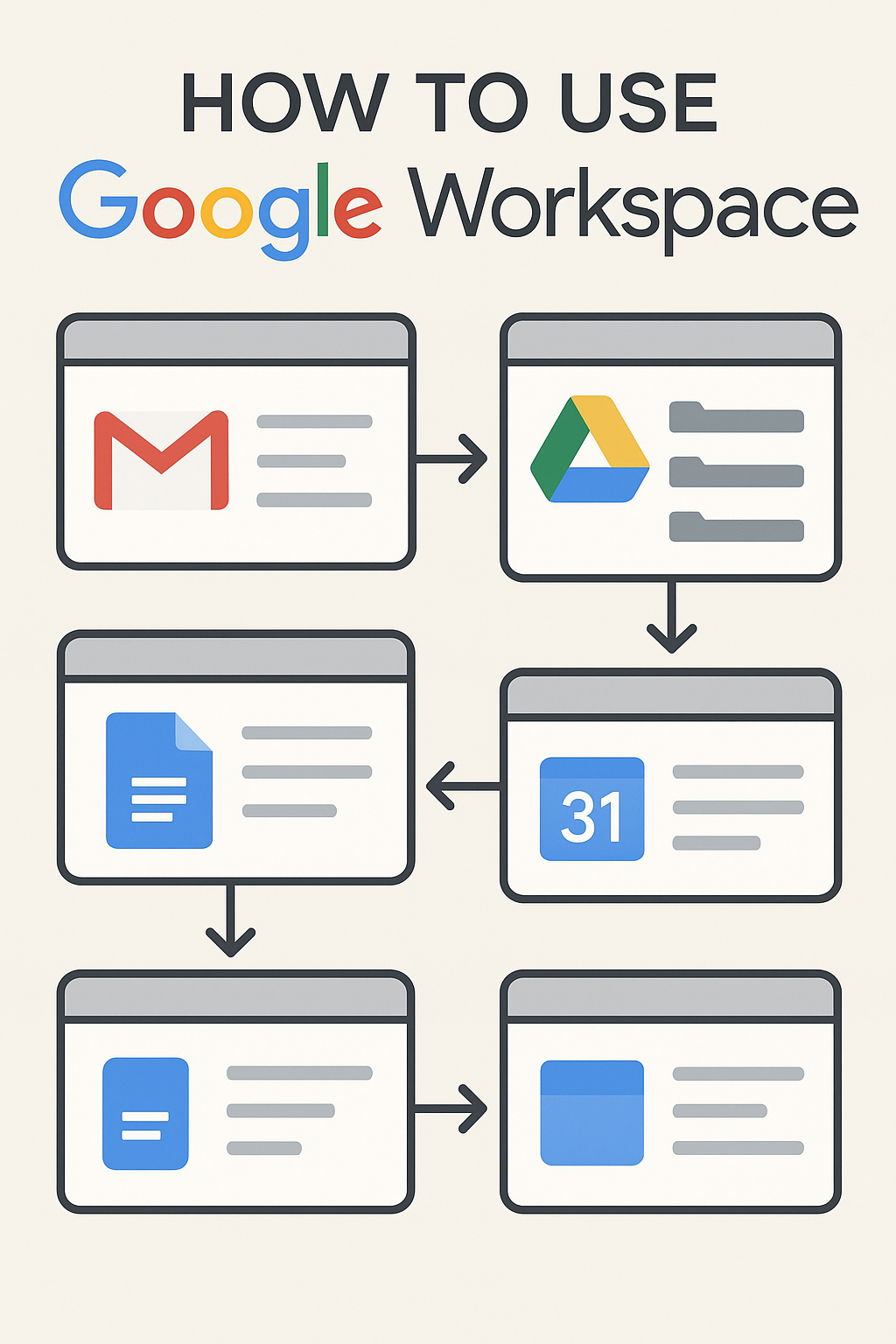
How to Use Google Workspace: Your Essential Guide to Getting Started
The below written text below is for How to Use Google Workspace for Your Business Growth. You know that Google Workspace is the ultimate productivity suite, but where do you actually begin? Whether you’re a new user stepping into the cloud for the first time or an administrator setting up an entire team, understanding the core structure and best practices is key.
This detailed guide breaks down how to use Google Workspace into two essential phases: the initial setup and mastering the daily workflow.
Use Google Workspace

The Step By Step How to use Google Workspace
Step 1: The Setup: How to use Google Workspace. (For Admins and New Accounts)
Before the real work begins, a few foundational steps ensure a secure and professional experience.
1. The Admin Console: Your Control Centre
This is the central dashboard for managing your organization.
- User Management: Easily add new employees, assign them a professional email address (e.g.,
name@yourcompany.com), and deactivate accounts when necessary. - Domain Verification: This critical step proves to Google that you own your business domain. Once verified, Google handles your professional email and security.
- Security Policies: Enforce best practices like 2-Step Verification (2FA) for all users. This drastically improves your organization’s security posture.
- Data Migration (If Applicable): If you are moving from another service (like Microsoft 365 or a legacy server), use Google’s built-in migration tools to transfer old emails, calendars, and files.
2. Set Up Your Core Devices
Ensure you and your team can work securely from anywhere.
- Desktop Access: Log in to Google Chrome or any browser with your new Workspace professional account. Use the nine-dot icon (the app launcher) in the corner of your screen to quickly access all your apps.
- Mobile Apps: Download the essential apps—Gmail, Drive, Calendar, and Chat—to your smartphone or tablet. Your admin may require you to set up a work profile to keep company data separate from personal data, which is crucial for security.
Step 2: Mastering the Daily Workflow (For Every User to use Google Workspace)
Google Workspace excels at making its apps “talk” to each other. Here’s how to use the core tools as an integrated system.
Communication: Gmail, Google Chat, and Google Meet
Don’t use these apps in isolation; use them as a unified communication stream.
| App | Key Use | Pro Tip for Efficiency |
| Gmail | Professional Email | Use Labels and Filters to automatically sort incoming mail into project folders, turning your inbox into a prioritized task list. |
| Google Chat | Instant Team Communication | Create Spaces for specific projects or teams. This keeps project discussions and shared files separated from your main inbox. |
| Google Meet | Video Conferencing | Integrate it directly with Calendar. Every calendar event automatically gets a Meet link. Use the noise cancellation feature for clear audio. |
Content & File Management: Google Drive, Google Docs, Google Sheets to use Google Workspace
The true power of Workspace is in collaboration, driven by Drive.
- Centralize with Drive: Treat Google Drive as your company’s shared hard drive. Crucially, use Shared Drives for team projects; the files belong to the team, not the individual creator. This prevents data loss when an employee leaves.
- Collaborate in Real-Time: Open a Docs (Word), Sheets (Excel), or Slides (PowerPoint) file. Multiple users can edit simultaneously. Use the @ symbol to tag a colleague to assign an action item or leave specific feedback.
- Utilize Version History: Forget saving files as
Final_V2,Final_V3. Google saves every edit automatically. Access the Version History to see exactly who changed what and revert to an earlier state instantly. - Smart Chips: When typing in Docs, type
@and start typing a colleague’s name, a file name, or a meeting date. Docs will insert an interactive “chip” that links the document directly to that resource, providing context instantly.
Organization and Scheduling: Calendar & Tasks
Manage your time and projects effectively.
- Find the Best Time: When scheduling a meeting in Google Calendar, use the “Find a Time” feature. It layers your attendees’ calendars to instantly show you the first available slot for everyone, eliminating endless email chains.
- Delegate with Calendars: Share your calendar with your team and set different access levels (e.g., See free/busy only or Make changes to events).
- Use Google Tasks: Integrate Tasks across your apps. You can turn an email into a task in Gmail, or assign an action item directly from a comment in Docs. Consequently, nothing falls through the cracks.
Unleash Advanced Productivity with AI (Gemini)
Many Workspace plans now include Gemini (Google’s AI assistant) integration, allowing you to work smarter:
- Drafting: Use Gemini in Gmail or Docs to instantly draft emails, generate responses, or write initial outlines for reports based on a simple prompt.
- Summaries: Get a quick summary of a long document in Docs or an entire email thread in Gmail, saving you significant reading time.
Getting started with Google Workspace is straightforward, but mastering its collaborative power requires learning the integrated workflow. The above-written process (How To Use Google Workspace For Your Business Growth) is for users migrating to Google Workspace.
Namastu.com specialises in ensuring your team not only sets up Google Workspace correctly but learns these powerful usage techniques. Contact us today to organize tailored training and support for your business!
