
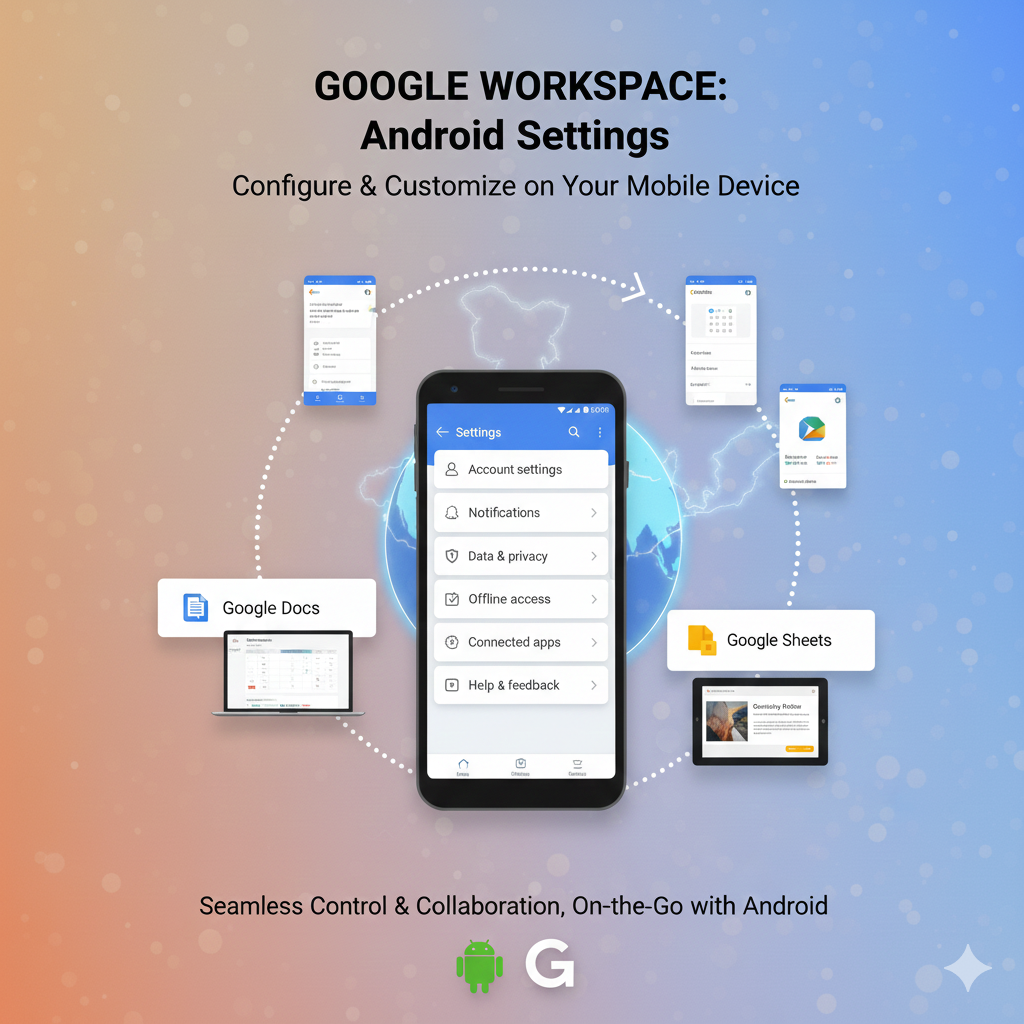
Set Up Google Workspace on Your Android Phones: Easy Steps!
Using Google Workspace Android Phone Settings, set up Google Workspace on Android phones and Android Mobiles. It is essential for working on the go. Fortunately, the setup is simple because Google designed Android with these tools in mind. You gain instant access to professional email, calendar, and file storage.
Here is a quick guide to setting up your Workspace account on your Android device. [Image showing the Android Settings screen with the “Accounts” option highlighted.]
Google Workspace Android Phone Settings

Phase 1: Google Workspace Android Phone Settings
You must first add your professional email address to your phone’s system settings.
- Open Settings: First, locate and tap the Settings app on your Android phone.
- Find Accounts: Scroll down and find the section labelled Accounts (it might also be “Users & Accounts”).
- Add Account: Tap the + Add account option.
- Select Google: Choose Google from the list of account types.
- Enter Credentials: Next, type your full Google Workspace email address (e.g., name@yourcompany.com). Then, enter your password.
- Accept Terms: You will see a few terms. Tap I agree to finalise adding the account to your device.
Phase 2: Google Workspace Android Phone Settings Syncing Your Data
Once added, your phone automatically starts syncing, but you can customise this.
- Check Sync Settings: Go back to the Accounts screen. Tap your newly added Workspace email address.
- Review Services: You will see a list of Google services: Calendar, Contacts, Gmail, and sometimes Drive.
- Toggle Sync: Ensure the toggles next to the services you want are switched ON. Therefore, your work calendar events and professional contacts immediately appear on your phone.
Phase 3: Using the Dedicated Apps
While the system integrates the account, you should use the dedicated Google apps for the best experience.
- For Email: Open the Gmail app. Tap your profile picture and select your new Workspace account. Consequently, you see your professional inbox instantly.
- For Documents: Download and open the Google Drive, Docs, Sheets, and Slides apps. They automatically connect to your professional account.
- For Meetings: Use the Google Meet and Google Chat apps. Your meetings and team messages link directly to your work account.
Key Settings to Review
- Security: Visit your account’s security settings on your phone. Crucially, ensure 2-Step Verification is enabled for your professional account. This drastically improves protection.
- Notifications: Go into the settings of the Gmail app. You can customise notifications for your work account. Thus, you control when you receive alerts.
- Device Management: If your company uses advanced security, your administrator might ask you to install the Google Device Policy app. This ensures your phone meets company security standards.
The Android platform makes using Google Workspace seamless. You enjoy a consistent work experience, whether you are at your desk or on the move. For any technical support, for Google Workspace Android Phone Settings, connect with namaSTu.com
