




Switching from traditional Microsoft Outlook to Google Workspace is a massive upgrade in productivity. However, the biggest fear for most users is: “What happens to my old emails?” Migrating PST Files to Google Workspace: A Step-by-Step Guide for End Users (2026 guide)
Years of important client history, contracts, and contacts are often locked inside PST (Personal Storage Table) files on your local computer. If you don’t migrate them correctly, that data is lost or fragmented.
This guide provides a technical, step-by-step walkthrough on how to move your legacy PST data into your new Google Workspace account using Google’s official tool: GWMMO (Google Workspace Migration for Microsoft Outlook).
Migrating PST Files to Google Workspace
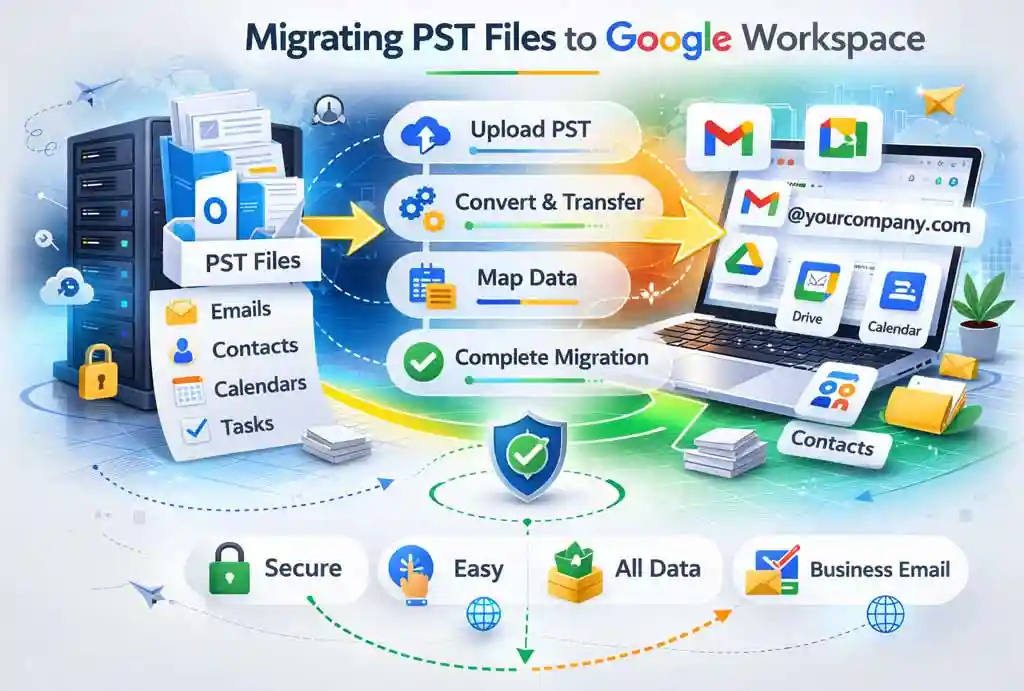
Prerequisites: Migrating Pst Files To Google Workspace
Attempting a migration without preparation will result in errors. Ensure you have the following:
-
The PST File: Locate your
.pstfile on your computer. (Usually found inC:\Users\YourName\Documents\Outlook Files). -
Google Workspace Account: You must have your new email (e.g.,
you@yourcompany.com) and password ready. -
2-Step Verification: If your company enforces 2-Step Verification, you may need to generate an “App Password” to allow the migration tool to log in.
-
Outlook Installed: The migration tool requires a 32-bit or 64-bit version of Outlook to be installed on the machine to read the MAPI profile.
Step 1: Download the Migration Tool (GWMMO)
Google provides a specialized utility for this exact task. Do not try to manually drag-and-drop folders; it will fail for large archives.
-
Visit the official Google tools page and download Google Workspace Migration for Microsoft Outlook (GWMMO).
-
Run the
.exefile to install it. -
Once installed, launch the application from your Start Menu.
Step 2: Sign In to Your Google Account
The tool needs permission to access your new inbox to deposit the data.
-
A login window will appear. Enter your Google Workspace email address.
-
A browser window will open asking for permission. Click Allow to grant GWMMO access to your Gmail, Contacts, and Calendar.
-
Return to the application. It should now say “Signed in successfully.”
Step 3: Select the Source (The PST File)
Now you need to tell the tool what to move.
-
In the dropdown menu labeled “Select a Microsoft Outlook profile or PST file to migrate,” choose “From PST File…”
-
A file browser will open. Navigate to your saved
.pstfile and select it. -
Click Next.
Step 4: Choose What to Migrate
You might not want everything. This step allows you to filter your data.
-
Select Data Types: You will see checkboxes for Email, Contacts, and Calendar. Check all that apply.
-
Date Filter: If you only need emails from the last 2 years, use the “Migrate mail sent before/after” options. Recommendation: For a complete archive, leave this unrestricted.
-
Click Migrate.
Step 5: The Migration Process (Do Not Interrupt)
The tool will now begin uploading your data.
-
Speed: This depends entirely on your internet upload speed. A 5GB PST file can take 1-4 hours on a standard connection.
-
Status: You will see a progress bar for each category (Email, Contacts).
-
Errors: If a specific email is corrupt (common in old Outlook files), the tool will log it but continue migrating the rest. It will not crash.
Step 6: Verification (Where is my data?)
Once the tool says “Migration Completed,” you can verify the data in Google Workspace.
-
Open Gmail: Log in to your account.
-
Look for Labels: The migration tool does not dump everything in your Inbox. Instead, it creates a Label (folder) on the left sidebar, usually named after your PST file (e.g.,
Outlook ArchiveorPersonal Folders). -
Check Contacts: Go to
contacts.google.com. Your Outlook contacts should now appear under a group named “Imported.”
Live Scenario: The “Lost Contract” Panic
The User: Sarah, a Sales Manager at TARA TECHNOCRACY.
The Problem: Sarah has 4 years of client emails in an Outlook PST file. She switches to Google Workspace but forgets to migrate. Two weeks later, she needs to find a signed contract from 2023 for a renewal.
The “Manual” Fail: She tries to “forward” emails from her old Outlook to her new Gmail. It takes hours, the formatting breaks, and the attachments are blocked by spam filters.
The GWMMO Success:
-
Sarah launches GWMMO.
-
She selects her 12GB
Sarah_Backup.pstfile. -
She lets it run overnight.
-
Result: The next morning, she logs into Gmail. On the left, she sees a label:
PST_Migration. She searches “2023 Contract,” and Google’s powerful search finds it instantly within that label. Zero data loss.
Troubleshooting Common Errors
| Error Message | Cause | Solution |
| “Authentication Failed” | 2-Step Verification is blocking the app. | Generate an “App Password” in your Google Account security settings and use that instead of your main password. |
| “PST File in Use” | Outlook is open and locking the file. | Close Microsoft Outlook completely before starting GWMMO. |
| “Network Timeout” | Internet connection dropped. | The tool has a “Resume” feature. Simply restart it, and it will pick up where it left off. |
Common Errors While Migrating PST Files to Google Workspace
Even with the official tool, migrations can fail. Most errors fall into three categories: Access (the tool can’t get in), File Locks (Outlook is holding onto the file), or Data Limits (Google rejects the specific item).
Here is a technical breakdown of the most common errors you might encounter during a PST migration and how to fix them.
1. Authentication Errors (In Migrating PST Files to Google Workspace)
The Error:
-
“Invalid credentials”
-
“Sign-in failed”
-
Tool loops back to the login screen repeatedly.
The Technical Cause:
Google Workspace security protocols (OAuth2) often block older applications or third-party tools if they don’t look like a standard browser login. If your company enforces 2-Step Verification (2SV), your standard password will not work here.
The Fix:
-
Enable 2-Step Verification: Go to
myaccount.google.com> Security > 2-Step Verification and turn it ON. -
Generate an App Password:
-
Go to Security > 2-Step Verification > Scroll to the bottom and select App Passwords.
-
Select Mail and Windows Computer.
-
Google will generate a 16-character code (e.g.,
wxyz abcd efgh ijkl).
-
-
Use the App Password: When GWMMO asks for your password, paste this 16-character code instead of your normal password.
2. MAPI / File Access Errors (PST Locked)
The Error:
-
0x80040109 -
“The process cannot access the file because it is being used by another process.”
-
“MAPI_E_Call_Failed”
The Technical Cause:
A PST file is a database. Microsoft Outlook locks this database when it is open to prevent corruption. If GWMMO tries to read the file while Outlook has it “open” (even in the background), the migration will fail.
The Fix:
-
Close Outlook Completely: Ensure the application is not running.
-
Check Background Processes:
-
Press
Ctrl + Shift + Escto open Task Manager. -
Look for
outlook.exeor “Microsoft Outlook” in the list. -
Right-click and select End Task.
-
-
Restart GWMMO: Relaunch the migration tool and try selecting the file again.
3. Data Limit Errors (In Migrating PST Files to Google Workspace)
The Error:
-
“Message skipped due to size limit”
-
“Attachment blocked”
-
0x80041066
The Technical Cause:
Google Workspace has stricter data hygiene rules than a local Outlook file.
-
Size Limit: Gmail has a hard limit of 25 MB per email (including attachments). Outlook PSTs often contain older emails with 50MB+ attachments that were allowed internally.
-
Blocked File Types: Google automatically blocks executable files (
.exe,.bat,.vbs) to prevent malware.
The Fix:
-
For Size Limits: You cannot migrate these via GWMMO. You must manually find the large email in Outlook, save the attachment to your desktop, upload it to Google Drive, and then migrate the email body (without the attachment) or delete the email.
-
For Blocked Files: These are permanently rejected by Google for security. Zip the file before migration if you absolutely need to keep it, though GWMMO will likely still skip the original message.
4. Network Timeouts (Stuck at 0% or 99%)
The Error:
-
0x80072ee2 -
“Network timeout”
-
Migration bar hangs at 0% for more than 15 minutes.
The Technical Cause:
This usually happens on slower upload connections (under 10 Mbps upload) or when the tool hits a “bad” sector in the PST file that it cannot read, causing the connection to Google’s server to time out while it waits for data.
The Fix:
-
Resume Migration: Close the tool and restart it. Select the same PST file and the same Google account. GWMMO is smart—it will detect the previous attempt and ask if you want to “Resume” (scan for new items only) or “Re-migrate”. Always choose Resume.
-
Disable Antivirus: strict local firewalls or antivirus scanners (like McAfee or Symantec Endpoint) can throttle the connection. Temporarily pause them during the migration.
5. Folder Hierarchy Limits
The Error:
-
“Folder depth exceeded”
-
Labels in Gmail look broken or truncated.
The Technical Cause:
Outlook allows for very deep folder nesting (e.g., Inbox > 2023 > Clients > Project A > Invoices > Jan > Paid). Gmail converts folders into Labels.
-
Gmail labels have a character limit (around 225 characters).
-
Deeply nested folders create label names that look like:
Inbox/2023/Clients/Project A/Invoices/Jan/Paid.
The Fix:
Before migrating, flatten your Outlook folder structure. Move sub-folders up a level (e.g., move Project A directly under Inbox) to shorten the path length.
Summary Checklist: Pst Files To Google Workspace Migration
-
[ ] Outlook is Closed:
outlook.exeis not running. -
[ ] 2SV is Ready: You have an App Password generated (if applicable).
-
[ ] PST is Local: The PST file is on your C: drive, not on a network drive or USB stick (this slows down migration 10x).
-
[ ] Power is On: Your laptop is plugged into a charger (migration uses high CPU).
Focus Keywords: Migrate PST to Google Workspace, import Outlook PST to Gmail, Google Workspace Migration for Microsoft Outlook (GWMMO) tool, upload PST to Google Drive, Outlook to G Suite migration guide.
Conclusion
Migrating PST files to google workspace is not just about moving data; it is about continuity. By using the GWMMO tool, you ensure that your past work is searchable, secure, and integrated into your new Google Workspace environment. You preserve your history while upgrading your future.
Google Workspace Reseller in Mumbai: Mumbai-Based Partners
[…] emails in PST files and Outlook. How do you migrate this without data loss? A: We use the Google Workspace Migration for Microsoft Outlook (GWMMO) tool and server-side migration […]