




Migrating from Microsoft SharePoint Online to Google Drive is a significant move that requires careful planning to ensure permissions, metadata, and folder structures remain intact. Depending on your business size, you have three primary paths.
1. Enterprise Path: Google’s Data Migration
Google Workspace provides a native, cloud-to-cloud migration service within the Admin Console. This is the most reliable method for large-scale transfers.
-
Requirements: You must be a Super Administrator in Google Workspace and a Global Administrator in Microsoft 365.
-
The Process:
-
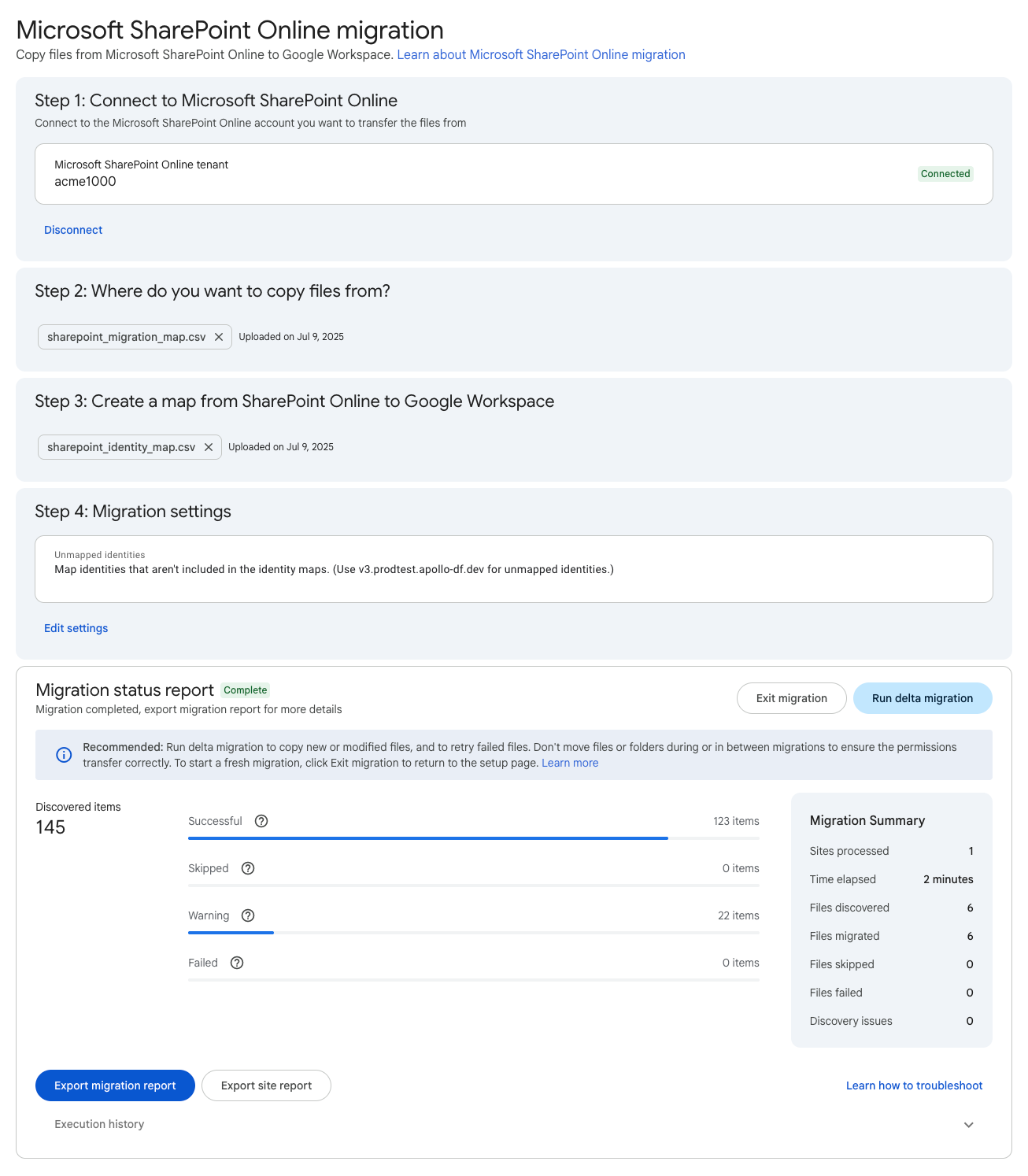
Connect: In the Google Admin Console, go to Data > Data Migration (New). Select “Microsoft SharePoint Online” and authorize the connection.
-
Mapping: You must create a CSV file that maps your SharePoint Site URLs to specific Google Shared Drives.
-
Permissions: During setup, you can choose to map Microsoft identities (emails) to their Google counterparts to preserve access levels.
-
Run: Start the migration. Google’s servers will handle the transfer in the background without needing your computer to stay on.
-
.png)
2. The Specialist Path: Third-Party Tools
If you have complex requirements—such as migrating version history, specific metadata, or complex nested permissions—native tools can sometimes fall short. Specialist tools offer deeper control.
-
Popular Tools (2026): CloudFuze, BitTitan MigrationWiz, and MultCloud.
-
Best For: * Delta Migrations: Transferring only files that have changed since your last sync (to avoid downtime).
-
Permission Mapping: Automatically converting “Read/Write” SharePoint permissions to “Contributor/Content Manager” roles in Google Drive.
-
Large Data: Moving terabytes of data with detailed error reporting and logs.
-
3. Small Scale: Manual “Download & Upload”
For very small teams or individual folders, you can use the manual method, though it is the most prone to errors.
-
Download: Select your folders in SharePoint and click Download. SharePoint will zip them into a single file.
-
Extract: Unzip the folder on your local machine.
-
Upload: In Google Drive, click + New > Folder Upload and select the unzipped folder.
-
Warning: This method strips away all permissions and metadata. You will have to re-share every folder manually once uploaded.
-
Critical Pre-Migration Checklist
-
Shared Drive Limits: Google Shared Drives have a limit of 500,000 items (files and folders). If your SharePoint site is larger, you must split it into multiple Shared Drives.
-
File Size: Most migration services skip individual files larger than 2GB (the standard SharePoint limit) or 15 TB (the Google Drive limit).
-
Communication: Advise users to stop editing files in SharePoint 24 hours before the “cut-over” to ensure no data is lost during the final sync.
User Creation & Roles in Google Workspace Admin Guide 2026
[…] User migration and training […]
Best Google Workspace plan for small business: A 2026 Guide
[…] User migration and training […]