




You can do the Google Workspace Outlook Configuration. Are you a die-hard fan of the Microsoft Outlook interface but love the reliability and cloud power of Google Workspace (formerly G Suite)? You are not alone. Many professionals prefer Outlook for its robust offline capabilities and familiar layout, even after their company has migrated to Google’s cloud.
The good news is you don’t have to choose. By configuring Google Workspace on Microsoft Outlook, you can get the best of both worlds: Google’s world-class spam filtering and sync speed, wrapped in the Outlook interface you know and love.
At namastu.com, we help businesses bridge this gap daily. Here is your step-by-step guide to setting it up correctly.
Why Not Just Use IMAP?
Before we dive in, a quick technical note. You can set up Google Workspace on Outlook using standard IMAP/POP settings. However, we do not recommend this for business power users.
-
IMAP only syncs emails. It will not sync your Google Calendar or Contacts.
-
GSSMO (Google Workspace Sync for Microsoft Outlook) is the official tool from Google. It creates a complete bridge, syncing your Emails, Calendars, Contacts, and even Notes.
Prerequisites: Before You Start
-
Admin Access: Ensure your Google Workspace Administrator has enabled “Google Workspace Sync for Microsoft Outlook” in the Admin Console (under Apps > Google Workspace > Gmail > End User Access).
-
Outlook Version: You need a compatible version of Outlook (2016, 2019, or Microsoft 365 desktop app).
-
Clean Slate: It is often best to start with a fresh Outlook profile to avoid data conflicts.
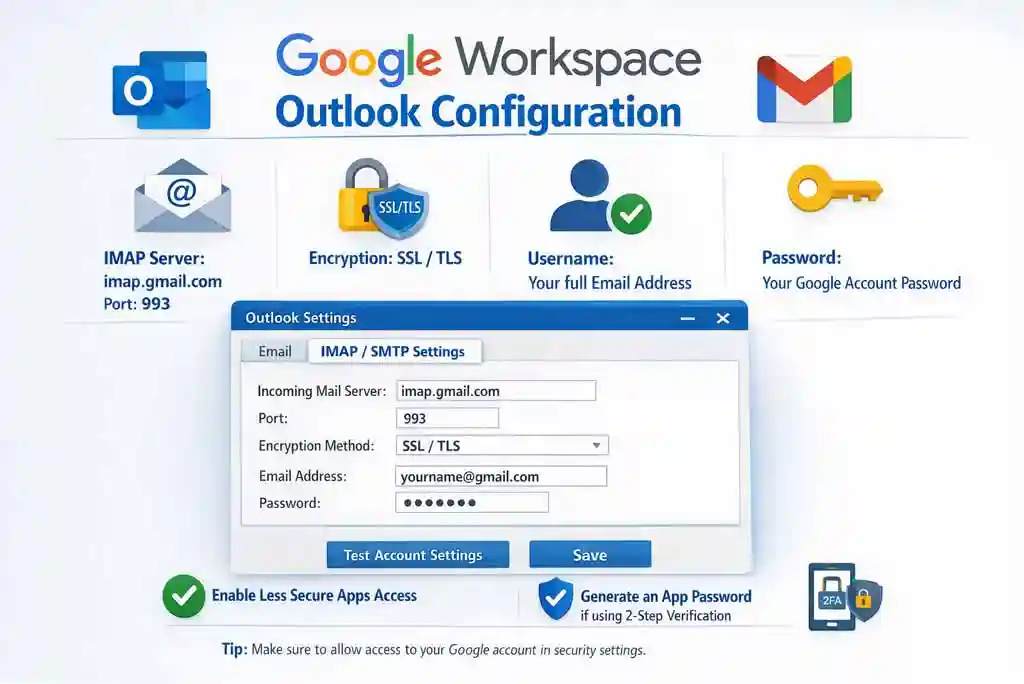
Google Workspace Outlook Configuration Steps
Step 1: Download and Install GSSMO
For Windows users, Google provides a dedicated utility that handles the heavy lifting.
-
Close Microsoft Outlook completely.
-
Visit the GSSMO download page and download the .exe file recommended for users.
-
Run the installer. It will verify your internet connection and download the necessary components.
Step 2: Sign In and Authorise
Once the installer finishes, a sign-in window will pop up.
-
Enter your Google Workspace email address (e.g., yourname@company.com).
-
Click Continue.
-
Your default web browser will open, asking you to sign in to your Google account.
-
Review the permissions requested (Gmail, Contacts, Calendar, Drive) and click Allow.
Note: If you are stuck on the “Waiting for authorization” screen, check your browser tabs; the permission window might be hidden behind other windows.
Step 3: Create Your Outlook Profile
After authorisation, the GSSMO tool will ask you to set up your profile.
-
Import data from an existing profile: Uncheck this box to start fresh (recommended for speed). If you need to migrate old PST data, check this box, but be warned: this can take hours depending on your mailbox size.
-
Click Create Profile.
-
Click Start Microsoft Outlook.
Step 4: Let the Sync Begin for Google Workspace Outlook Configuration
Outlook will open, and you will see a small synchronisation status window from Google.
-
Emails: Recent emails will appear quickly, but your full history may take time to download.
-
Calendars & Contacts: These usually sync within a few minutes.
You can now use Outlook normally! Any meeting invite you accept in Outlook will reflect in your Google Calendar, and any email you send via Outlook will be in your Gmail “Sent” folder.
Troubleshooting Common Issues for Google Workspace Outlook Configuration
-
Calendar not syncing? Right-click the GSSMO icon in your Windows system tray and select “View Sync Status” to check for errors.
-
“Limit Exceeded” error? By default, GSSMO limits the local mailbox size (e.g., 1GB or 2GB) to keep Outlook fast. You can increase this limit by right-clicking the GSSMO icon > Set mailbox size limit and choosing “Unlimited” or “4GB”.
When configuring Google Workspace with Microsoft Outlook—specifically using the GSSMO (Google Workspace Sync for Microsoft Outlook) tool—several common issues can arise.
1. “Google Workspace Sync is not enabled for your domain”
This is an administrative error. Even if you have the tool installed, it won’t work if the feature is turned off at the account level.
-
The Cause: The Google Workspace admin has not allowed sync for the organisation.
-
The Fix: The admin must go to the Google Admin Console > Apps > Google Workspace > Gmail > End User Access and check the box for “Enable Google Workspace Sync for Microsoft Outlook.”
2. Outlook Version Incompatibility
GSSMO is designed for specific versions of the Microsoft desktop environment.
-
The Cause: Trying to use GSSMO with Outlook for Mac (which is not supported), very old versions (Outlook 2010 or earlier), or the “New Outlook” toggle in Windows.
-
The Fix: Ensure you are using a stable desktop version of Outlook 2016, 2019, or Microsoft 365. If you have the “New Outlook” toggle turned on in the top right corner, you must switch back to Classic Outlook for GSSMO to function.
3. “Limit Exceeded” or Outlook Slowing Down
Users often find that only a small portion of their email history is visible, or Outlook becomes sluggish.
-
The Cause: GSSMO defaults to a 1GB local mailbox limit to prevent Outlook from crashing due to large data files.
-
The Fix: Right-click the GSSMO icon in your Windows System Tray (near the clock) > select Set mailbox size limit. Increase it to 2GB, 4GB, or Unlimited (though Unlimited may slow down older computers).
4. Authentication and Browser Loops
Sometimes the authorisation window doesn’t pop up, or it fails after you sign in through the browser.
-
The Cause: Pop-up blockers, cached browser credentials, or the browser not “talking” back to the GSSMO app.
-
The Fix: Set your default browser to Chrome temporarily during setup. If the “Waiting for authorization” screen hangs, check all open browser tabs for a “Success” message or a request to “Allow” access.
5. Calendar and Contact Sync Failures
You might see emails syncing perfectly, but your calendar is empty.
-
The Cause: Conflicts with other Outlook Add-ins or a corrupted Outlook profile.
-
The Fix: * Right-click the GSSMO icon > View Sync Status to see if specific folders are throwing errors.
-
Disable third-party antivirus “Email Scanning” features, as these often interfere with the sync bridge.
-
The “Clean Slate” Method: Create a brand-new Outlook profile through the GSSMO tool rather than trying to link an existing IMAP/POP profile.
-
6. PST Migration Errors
If you are importing old data during the setup, the process may stall.
-
The Cause: The source PST file is corrupted or too large.
-
The Fix: Run the Inbox Repair Tool (scanpst.exe) on your old Outlook data file before attempting to import it through the GSSMO setup wizard.
For businesses looking for a seamless transition without these technical hurdles, it is often recommended to consult with a specialist. TARA TECHNOCRACY (via namastu.com) provides dedicated support for Google Workspace migrations and Outlook configurations across India.
Need Help Migrating?
Setting up one computer is easy, but migrating an entire office to Google Workspace requires strategy. At TARA TECHNOCRACY (via namastu.com), we specialise in seamless cloud migrations.
[Contact Us Today for a Free Consultation]