




Migrating from Webmail to Google Workspace
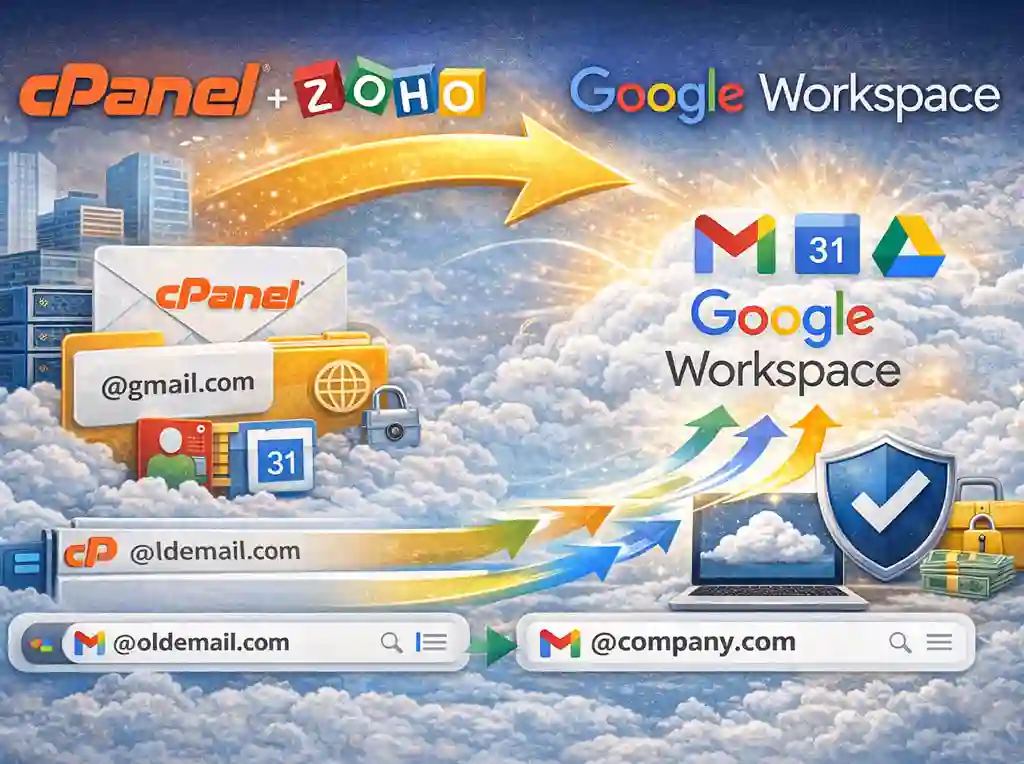
In the modern business landscape, relying on basic cPanel or Webmail servers often feels like driving a car with a manual choke—it works, but it’s far from efficient. This guide simplifies the process of migrating your data from cPanel/ Webmail to Google Workspace seamlessly. Transitioning to Google Workspace Migration (formerly G Suite) is more than just a change in email interface; it’s an upgrade to a robust productivity ecosystem. However, the thought of losing years of critical correspondence keeps many business owners awake at night.
How to Migrate from Webmail to Google Workspace?
While cPanel mail is cost-effective, Google Workspace offers:
-
Superior Deliverability: Stop landing in the spam folder.
-
Massive Storage: Starting at 30GB per user.
-
Integrated Apps: Drive, Meet, and Docs all in one place.
-
Advanced Security: Enterprise-grade phishing and malware protection.
Pre-Migration Checklist
Before you begin the technical heavy lifting, ensure you have:
-
A Google Workspace Account: Set up your primary domain.
-
User List: Create the destination email accounts in your Google Admin console.
-
IMAP Details: Locate your cPanel mail server address (usually
mail.yourdomain.com) and port (usually 993). -
Passwords: You will need the login credentials for every source mailbox.
Step-by-Step Webmail to Google Workspace Migration
1. Configure the Data Migration Service (DMS)
Google provides a built-in tool called the Data Migration Service.
-
Log in to the Google Admin Console.
-
Navigate to Account > Data Migration.
-
Select Email as the data type and Other IMAP Server as the migration source.
2. Connection Settings
Enter your cPanel server information. Set the connection protocol to IMAP and use SSL for security. This allows Google’s servers to talk directly to your old cPanel server to “pull” the data.
3. Select Users and Start
You can migrate users one by one or upload a CSV file for bulk migration. Once you map the source email (cPanel) to the destination email (Google), the process begins in the background.
4. Update MX Records
This is the most critical step. Even after data is copied, new emails will still go to your old server until you update your DNS (MX Records).
-
-
Go to your domain registrar (GoDaddy, Namecheap, etc.).
-
Delete existing MX records.
-
Add Google’s MX records.
-
Best Practices for a Smooth Transition
-
The “Lull” Period: Migration can take a few hours to a few days, depending on the volume of data. Perform the MX record switch during off-peak hours (like Friday evening).
-
TTL Settings: Lower your DNS “Time to Live” (TTL) to 3600 seconds a day before migration to ensure the MX record change propagates quickly.
-
Folder Cleanup: Delete your “Trash” and “Spam” folders in Webmail before migrating to save time and storage space.
Common Errors in Webmail to Google Workspace Migration
1. Authentication and Connection Failures
The most common error is the Google Data Migration Service (DMS) failing to connect to your cPanel server.
-
The Error: “11021: Source server connection failed.”
-
The Cause: cPanel servers often have security firewalls (like CSF or BitNinja) that block “suspicious” bulk login attempts. Since Google tries to access many mailboxes at once, your server might flag it as a brute-force attack.
-
The Fix: Whitelist Google’s IP address ranges in your cPanel/WHM firewall. Also, ensure you are using Port 993 with SSL/TLS enabled.
2. Incorrect IMAP Path Prefixes
cPanel and Google handle folder structures differently.
-
The Error: Migration completes, but folders like “Sent,” “Drafts,” or “Junk” are missing or appear as subfolders under the Inbox.
-
The Cause: cPanel often uses an IMAP path prefix (usually
INBOX). If this isn’t specified, Google might not map the folders correctly. -
The Fix: In the Google Admin migration settings, check if your source server requires an IMAP path prefix. If so, enter
INBOX(all caps) in the advanced settings.
3. MX Record Propagation Delays
Updating your DNS is the “point of no return.”
-
The Error: “Split delivery” or “Missing emails” during the first 24 hours.
-
The Cause: If you don’t lower your TTL (Time to Live) value before the migration, some internet service providers will keep sending mail to your old cPanel server for up to 48 hours after you’ve switched to Google.
-
The Fix: 24 hours before you migrate, change your MX record TTL to 3600 seconds (1 hour). This ensures the switch to Google happens almost instantly across the web.
4. Oversized Attachments
Google Workspace has a strict 25MB limit for incoming/outgoing emails (including attachments).
-
The Error: Individual emails fail to migrate with an “Attachment too large” error.
-
The Cause: cPanel servers often allow much larger attachments. These files simply cannot “fit” into a Google mailbox.
-
The Fix: Use a third-party tool like GotYourBack (GYB) or manually download large attachments from Webmail and upload them to Google Drive instead.
5. Exceeding Google’s “Rate Limits”
Google limits how much data you can “push” into an account per second.
-
The Error: Migration slows down to a crawl or hangs at 99%.
-
The Cause: If you are migrating a 50GB mailbox, you might hit Google’s bandwidth limits.
-
The Fix: Avoid running multiple migrations for the same user at the same time. If the migration stalls, pause it for an hour and resume to let the “cooldown” period pass.
Quick Troubleshooting Table
| Error Symptom | Likely Culprit | Quick Fix |
| Invalid Credentials | Password/Username mismatch | Check if “Email Disk Usage” in cPanel shows the account is active. |
| Connection Timed Out | Firewall/IP Block | Whitelist Google IPs in WHM. |
| Missing Sent Items | Folder Mapping | Set IMAP Path Prefix to INBOX. |
| Slow Migration | Large Mailbox Size | Start migration during off-peak hours. |
FAQs for Webmail to Google Workspace Migration
Q1: Will my old emails be deleted from Webmail after the migration? Ans: No. Google Workspace copies your data; it does not move or delete it. Your old emails will remain on your original server until you manually delete them or cancel your old hosting.
Q2: Can I migrate my Contacts and Calendars via IMAP?
Ans: No. The standard IMAP protocol only supports Email. To migrate Contacts and Calendars from Webmail, you must export them as.vcfor.icsfiles and manually import them into Google.
Q3: How long does the migration take?
Ans: It depends on the volume of data. On average, Google migrates about 1 email per second. A 5GB mailbox typically takes a few hours to complete.
Q4: Will my folder structure (Inbox, Sent, Custom Folders) stay the same?
Ans: Yes. Google Workspace recreates your webmail folder structure as Labels. For example, a folder named “Invoices” in Webmail will appear as a label named “Invoices” in Gmail.
Q5: Do I need to keep my computer on during the migration?
Ans: No. Once you initiate the migration from the Admin Console, it runs on Google’s cloud servers. You can close your browser and even turn off your computer; the process will continue automatically.
Q6: My migration failed with an “Authentication Error.” Why?
Ans: This usually happens if the source password is incorrect or if your webmail server is blocking Google. Ensure IMAP is enabled on your source server and check if you need to “Allow less secure apps” or use an “App Password” if your webmail has 2FA enabled.
Google Workspace Plans Pricing in India - 2026 Cost & Plans
[…] How To Migrate From Webmail to Google Workspace? […]