




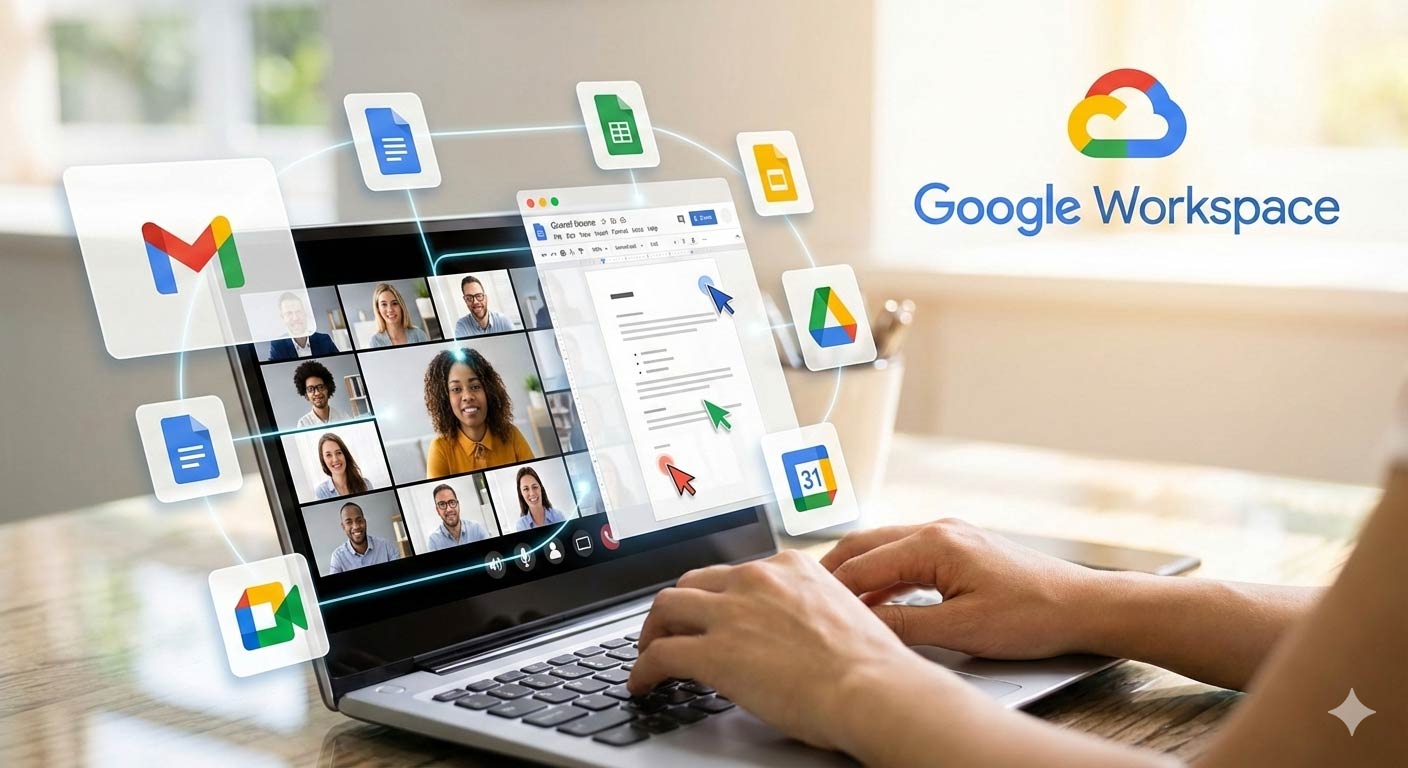
Google Workspace features: Using Sheets, Docs, and Slides in Workspace! Google Workspace features three powerful tools: Docs, Sheets, and Slides. Essentially, these applications allow your team to create, edit, and collaborate in real time. Furthermore, since everything lives in the cloud, you can access your work from anywhere!
When it comes to productivity, the trio of Docs, Sheets, and Slides has long been the gold standard for cloud-based collaboration. But in 2025, these tools have evolved from simple editors into an AI-powered ecosystem that does the heavy lifting for you.
In our feature deep-dive, Google Workspace Features: Sheets, Docs, and Slides in Workspace, we explore how the latest updates—specifically the integration of Gemini 3—are redefining how teams create and analyze data.
What You’ll Learn:
-
-
The Gemini Advantage: How to use the "=AI" function in Sheets to categorize thousands of rows instantly or use "Help me write" in Docs to draft a project proposal in seconds.
-
Real-Time Multimodal Collaboration: Discover how to meet directly inside a document and use the new Side Panel to pull insights from Gmail or Drive without switching tabs.
-
From Data to Visuals: How Slides now uses Imagen models to generate custom on-brand imagery and infographic layouts from a simple text prompt.
-
Smart Automation: A look at Workspace Studio, where you can build no-code AI agents to automate workflows between your spreadsheets and documents.
-

Google Workspace features: Google Sheets, Google Docs, and Google Slides in Email
Here is your simple guide to using the core collaboration tools of Google Workspace or Google Workspace features. [Image showing the icons for Google Docs, Sheets, and Slides side-by-side.]
cs is perfect for creating text-based documents. Think letters, reports, and memos.
- How to Start: Open Drive and click New > Google Docs.
- Real-Time Editing: Immediately, multiple people can edit the same document simultaneously. You see their cursor moving as they type!
- Commenting and Suggestions: Select text and click the comment icon. This lets you give feedback without changing the text. Alternatively, use the Suggesting mode to propose changes the owner can accept or reject later.
- Automatic Saving: Docs saves your work automatically every few seconds. Therefore, you never lose progress, even if your internet connection is interrupted.
2. Google Sheets: Google Workspace Features for Business Analytics
Sheets handles data, budgets, and reports effortlessly. It is Google's answer to Excel, but built for collaboration.
- How to Start: Open Drive and click New > Google Sheets.
- Powerful Formulas: You use standard formulas and functions (like SUM, AVERAGE, and VLOOKUP). However, Sheets offers more, including built-in functions for pulling data from the web (like GOOGLEFINANCE).
- Shared Views: You can filter and sort data without affecting how others see it. Thus, everyone works with the same core data while viewing it differently.
- Data Integrity: Use Protected Ranges to stop accidental changes to important formulas or cells. This is crucial for shared financial data.
3. Google Slides: Google Workspace Features for Slides Show or Presentation
Slides helps you design professional, visual presentations for meetings and pitches.
- How to Start: Open Drive and click "New"> "Google Slides".
- Template Library: Start quickly by choosing from a large selection of professional templates. Then, customize the colors and fonts to match your brand.
- Co-Creation: Teams can work on different sections of the presentation at the same time. For instance, one person designs the intro slides while another focuses on the data charts.
- Present from Anywhere: You don’t need to download the file. You simply click the Present button right from the browser. Moreover, you can even host Q&A sessions right from within your slide deck.
The Collaboration Key: Sharing
The real power comes from the Share button, located in the top-right corner of all three apps.
- Control Access: You control who sees the file. You can grant access for Viewing, Commenting, or Editing.
- Link Sharing: Also, you can generate a public link. This lets external clients or partners view your work easily without a login.
- Permission Settings: Crucially, you can restrict downloading, printing, and copying. This adds an extra layer of security for sensitive documents.
The above-given Google Workspace features are dedicated to your business growth. Google Docs, Sheets, and Slides make your team incredibly efficient. They eliminate file version confusion and enhance productivity.
Do you want to learn how to move your existing Microsoft Office files (Word, Excel, PowerPoint) into Google Workspace?