




Google Workspace Compatibility guide, or Google email Compatibility guide, is a cloud-first solution. This means your work isn't tied to one computer. You can access your files and communication tools from virtually any device, anywhere. Moving your business to use Google Workspace is about more than just switching to a professional email—it’s about creating a unified, AI-powered digital headquarters. In 2026, "using" Workspace means leveraging the deep integration between Gmail, Drive, and Gemini AI to automate routine tasks and collaborate in real-time from any device.
Getting Started To Use Google Workspace: The First 3 Steps
-
Claim Your Domain: Move from
@gmail.comto@yourbrand.comvia the Admin Console to build instant client trust. -
Organize Shared Drives: Instead of individual folders, use Shared Drives, so your team’s files stay with the company even if a member leaves.
-
Enable Gemini AI: Activate the Gemini side panel in Docs and Gmail to summarize long threads or draft first versions of proposals in seconds.
Google Workspace Compatibility Guide: Android, Apple, Windows & Linux
Minimum OS requirements for Google Workspace as 2026.
| Operating System | Support Policy | Minimum Version (Est.) | Key Notes |
| Android | Current OS + 2 Previous | Android 13 | Older versions may not receive app updates. |
| iOS / iPadOS | Current OS + 1 Previous | iOS 17 | Google is strict with iOS. Old versions lose features quickly. |
| Windows | Fixed Minimums | Windows 10 (64-bit) | 32-bit systems are NOT supported for Drive for Desktop. |
| macOS | Current OS + 2 Previous | macOS 13 (Ventura) | "Drive for Desktop" requires recent macOS for "File Provider" sync. |
| Linux | Web Only | N/A | No official desktop apps. Must use Chrome/Firefox browser. |
| ChromeOS | Auto-Updated | Latest Version | ChromeOS updates automatically; older "EOL" Chromebooks may lose support. |
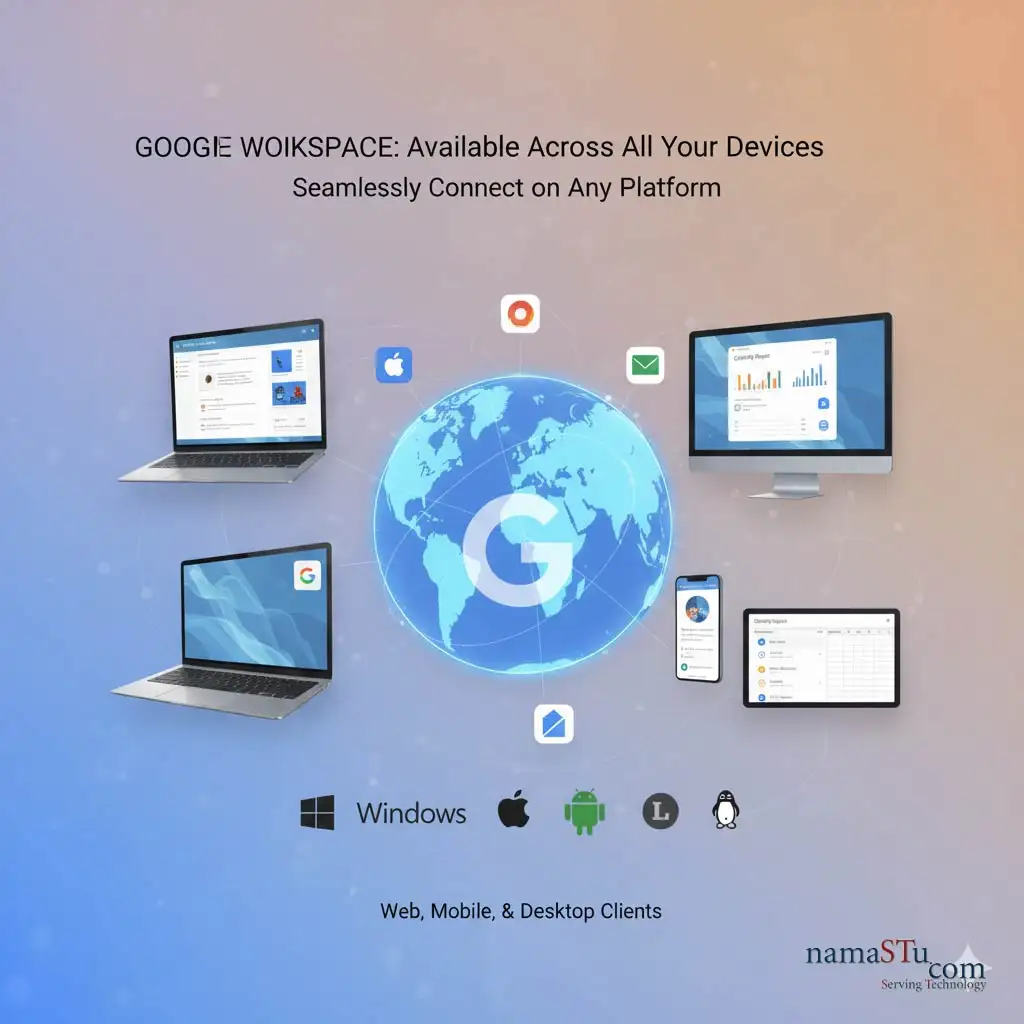
1. How to Use Google Workspace on a Web Browser?
This is the main way most people use Google Workspace. It offers the fullest features.
- Platform: Works on all major operating systems.
- Operating Systems (OS): Windows, macOS, Linux, and ChromeOS.
- Access Method: Simply open your preferred web browser (Chrome, Firefox, Edge, Safari).
- Key Advantage: You don't need to install any heavy software. All applications (Gmail, Docs, Sheets, Calendar) run right in the browser. You get the complete, feature-rich experience.
Which browsers support Google Workspace?
Browser Support Policy Current Stable Version (Est.) Key Limitations Google Chrome Latest Version v144 - v145 None. Best experience. Required for Offline Mode. Mozilla Firefox Current + Previous v147 No offline access for Gmail/Docs. No client-side encryption in Meet. Microsoft Edge Current + Previous v144 Built on Chromium. Works well but offline mode is often buggy. Apple Safari Current + Previous v26.2 Mac/iOS only. No desktop notifications for Gmail. -
Important Requirements
For Google Workspace to work on any browser, you must have the following enabled:
-
Cookies (required for sign-in)
-
JavaScript (required for all interactive elements)
2. How to Use Google Workspace on a Mobile Device?
-
Google Workspace is optimised for working on the go. Each core service has its own dedicated app.
- Platform: Mobile operating systems.
- Operating Systems (OS): Android (via Google Play Store) and iOS (iPhone/iPad via App Store).
- Access Method: Download the individual apps:
- Gmail
- Google Drive
- Google Docs, Sheets, Slides
- Google Meet
- Google Chat
- Key Advantage: You can view, edit, and collaborate on files even offline. Data is synced automatically when you reconnect to the internet.
3. How to Synchronise Google Workspace Desktop Applications?
While the browser is primary, you can have a strong desktop presence.
- Tool: Drive for Desktop: This application is essential. It lets you stream your entire Google Drive content directly to your computer.
- Benefit: Your files appear right in your computer’s file explorer (like Windows Explorer or macOS Finder). You don't need to download everything. This saves local storage space.
- Other Integrations: You can also set up Gmail and Calendar to sync with popular desktop clients like Microsoft Outlook via Google Workspace Sync for Microsoft Outlook (GWSMO).
4. Third-Party Software (Integrations)
Google Workspace is designed to connect with other tools you already use.
- Integration Example: You can connect Google Drive to tools like Asana, Salesforce, or Trello.
- Access Method: Through the Google Workspace Marketplace or direct API integration.
- Key Advantage: It makes your work more efficient by linking your cloud office tools with your other business applications.
Common Compatibility Issues
While Google Workspace is designed to be universal, "universal" comes with a few footnotes.
Here are the most common compatibility roadblocks users face, categorized by where they usually happen.
1. The "Offline Mode" Trap (Browser Issues)
This is the #1 complaint. You lose internet, and suddenly you can't open your email or documents.
-
The Issue: Offline access for Gmail, Docs, Sheets, and Slides is officially restricted to Google Chrome.
-
The Symptom: If you use Safari, Firefox, or Edge, you often cannot enable "Offline Mode" in the settings, or it fails to sync.
-
The Fix: You must use Google Chrome for reliable offline work. (Note: Microsoft Edge can sometimes work since it uses Chrome's engine, but it is buggy and often requires IT admin policy changes to function correctly).
2. The "Multiple Account" Conflict
-
The Issue: You are logged into a personal Gmail (
coolguy99@gmail.com) and a work Workspace (ceo@company.com) in the same browser window. -
The Symptom: You click a Google Meet link or a Drive file, and it says "Access Denied" or "You need permission," even though you know you have access.
-
The Fix:
-
Best: Use Chrome Profiles (click your face icon in the top right of the browser -> "Add") to keep work and personal data completely separate.
-
Quick: Use "Incognito Mode" or "Private Window" to sign in to the second account temporarily.
-
3. Apple/Mac Specific Quirks
-
Safari Notifications: Safari does not support desktop notifications for Gmail or Chat in the same way Chrome does. You might miss emails if the tab is closed.
-
Finder Sync: MacOS often fights with "Google Drive for Desktop."
-
Symptom: You try to open a file from Finder, and it lags or demands you to log in again.
-
Fix: You often need to grant Google Drive "Full Disk Access" in your Mac's System Settings > Privacy & Security.
-
4. Linux Limitations
-
No Native Drive App: Google does not make an official "Google Drive for Desktop" application for Linux.
-
Workaround: Linux users must use the web browser version or rely on third-party tools (like
rcloneorinsync) to sync files to their hard drive.
-
-
Screen Sharing in Meet: On some Linux setups (specifically those using "Wayland" display servers), screen sharing in Google Meet can be broken or blacked out. You often have to switch to "X11" or use specific browser flags to fix it.
5. Mobile App "Lite" Features
The mobile apps (Docs, Sheets, Gmail) are powerful, but they are not 1:1 copies of the desktop version.
-
Missing Features: You cannot create "Pivot Tables" in Sheets, change advanced image formatting in Docs, or manage complex Admin Console settings easily from the mobile apps.
-
The Fix: For heavy editing, you effectively must use a tablet with a desktop-class browser or a laptop.
Best Practices for Compatibility Troubleshooting
Here is the Best Practices Guide for Troubleshooting Google Workspace Compatibility.
When something breaks (e.g., Gmail won’t load, Drive files won’t sync, or Meet keeps dropping), follow this step-by-step protocol. These are ordered from easiest/most likely to hardest/complex.
1. The "Golden Rule" of Troubleshooting: Isolate the Variable
Before you start fixing things, ask yourself:
-
Is it just this browser? (Try a different browser).
-
Is it just this account? (Try a personal Gmail).
-
Is it just this network? (Switch to mobile data).
2. The Browser Protocol (Fixes 80% of Issues)
Most "incompatibility" is actually just a clogged browser.
-
Step A: The "Incognito" Test
-
Open an Incognito/Private window (
Ctrl+Shift+NorCmd+Shift+N) and log in. -
If it works here: The issue is definitely Cache, Cookies, or a Bad Extension.
-
-
Step B: The "Hard Refresh"
-
While on the broken page, press
Ctrl + F5(Windows) orCmd + Shift + R(Mac). This forces the browser to download a fresh copy of the page, ignoring the cache.
-
-
Step C: Extension Audit
-
Ad-blockers and "Privacy" extensions are notorious for breaking Google Workspace. Disable your extensions one by one to find the culprit.
-
-
Step D: Clear Specific Cookies
-
Instead of clearing everything, go to your browser settings and search for "cookies." Type
google.comand delete only those cookies. This logs you out but preserves your history and other site data.
-
3. Network & Security Settings
If the browser isn't the problem, your computer's security software might be blocking Google.
-
Disable VPNs/Proxies: Google's security AI often blocks traffic that comes from VPNs because it looks suspicious (like a bot). Turn off your VPN and try again.
-
Trusted Sites (Allowlist):
If you are in a corporate environment with a strict firewall, ensure these domains are allowlisted (marked as safe):
-
*.google.com -
*.googleapis.com -
*.gstatic.com -
*.googleusercontent.com
-
4. The "Multi-Account" Hygiene
As mentioned before, account conflict is a major cause of "Access Denied" errors.
-
Best Practice: Never sign into multiple Google accounts in the same browser tab/session.
-
The Fix: Use Chrome Profiles. Create a dedicated profile for "Work" and one for "Personal." This keeps the cookies, history, and logins completely sandboxed from each other.
5. Mobile Troubleshooting
-
Update the App: Google updates its mobile apps almost weekly. An app that is 2 months old may lose compatibility with the latest server-side features.
-
Remove & Re-add Account: If Gmail or Calendar isn't syncing on your phone, don't just restart the phone. Go to Settings > Accounts > Google, remove the work account, and sign in again. This forces a complete re-sync of the database.
6. The "Nuclear" Option (When nothing else works)
If you are still stuck, use Google's official diagnostic tools.
-
Google Workspace Status Dashboard: Check google.com/appsstatus to see if Google itself is down.
-
Google Admin Toolbox: If you are technical, visit toolbox.googleapps.com. Use the "BrowserInfo" or "Log Analyzer" tools to get a technical report on what is failing.