




The Ultimate Guide: How to Set Up Google Meet for Your Organisation (2026 Edition)
In the fast-paced Indian business landscape of 2026, virtual collaboration is no longer just a luxury—it’s the engine of growth. Whether you are a startup in Bengaluru or an established enterprise in Mumbai, clear and secure communication is vital. So we need to know the process of Set up Google Meet for Your Organization. Google Meet, a core component of Google Workspace, has evolved into a powerhouse of productivity, especially with the integration of Gemini AI.
Setting up Google Meet correctly ensures your team can host professional, uninterrupted, and secure meetings. At Namastu, as an authorised Google Workspace reseller in India, we help businesses transition to these tools seamlessly. This guide will walk you through the entire setup process, from the Admin Console to AI optimisation.
Why Choose Google Meet for Your Indian Business?
Before we dive into the “how,” it is important to understand why Google Meet stands out in 2026:
-
Gemini AI Integration: Features like “Take notes for me” and real-time translated captions (supporting over 65 languages) make meetings more inclusive.
-
Zero-Downtime Reliability: With a 99.9% uptime guarantee, your business never stops.
-
GST-Compliant Invoicing: When you partner with a reseller like Namastu, you get local INR billing and valid GST invoices for your tax inputs.
Step 1: Choose the Right Google Workspace Plan To Set Up Google Meet
Google Meet features vary by plan. To set it up for an organisation, you first need a Workspace subscription.
| Feature | Business Starter | Business Standard | Business Plus / Enterprise |
| Participant Limit | 100 | 150 | 500 – 1,000 |
| Meeting Length | 24 Hours | 24 Hours | 24 Hours |
| Recordings | No | Yes (Saved to Drive) | Yes + Attendance Tracking |
| AI Features | Basic | Advanced (Gemini) | Full Suite + Live Stream |
Pro Tip: For most growing Indian SMEs, the Business Standard plan is the “sweet spot,” providing the essential recording feature and Gemini AI noise cancellation.
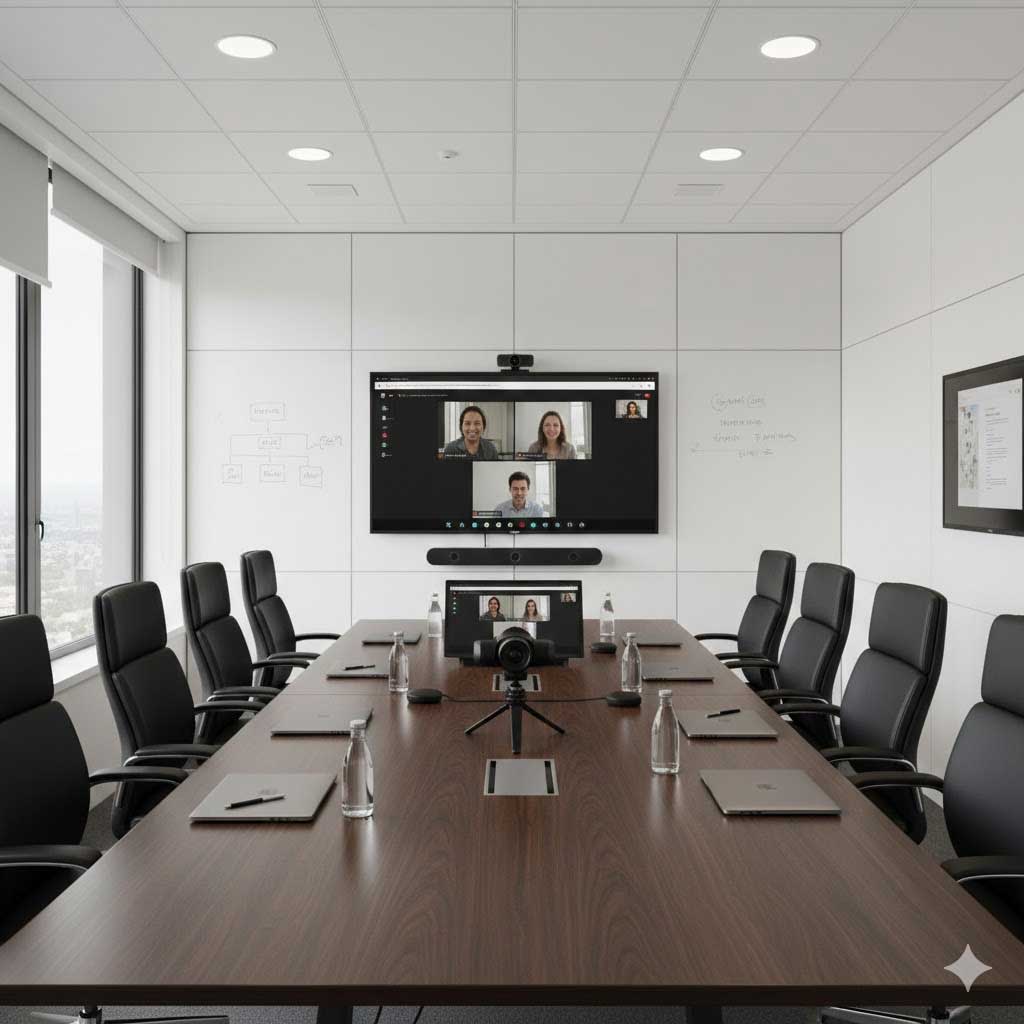
Step 2: Enable Set Up Google Meet in the Admin Console
Once your Workspace is active, the administrator must enable the service for the team.
-
Log in to the Admin Console: Go to admin.google.com using your super admin credentials.
-
Navigate to Apps: Click on Apps > Google Workspace > Google Meet.
-
Service Status: Ensure the status is set to “ON for everyone.” You can also turn it on only for specific “Organizational Units” (e.g., enable recording for the Sales team but not for Interns).
-
Meeting Settings: Click on “Meet video settings” to customize:
-
External Access: Decide if people outside your
@yourcompany.comdomain can join meetings. -
Recording: Toggle whether users are allowed to record their calls.
-
Telephony: Enable “Dial-in” so participants can join via a phone call if they have a poor internet connection.
-
Step 3: Configure Network and Security for Large Teams
For organizations with 50+ employees, network optimization is crucial to avoid the dreaded “video lag.”
-
Bandwidth Management: Ensure your office firewall allows traffic through UDP ports 3478 and 19302–19309.
-
Host Management: Enable “Host Management” in the settings. This allows the meeting creator to mute all participants, restrict screen sharing, and lock the meeting to prevent “Zoombombing” or unauthorized entries.
-
Green Room Testing: Encourage your team to use the “Green Room” feature before joining. It allows them to check their lighting, background blur, and microphone levels before they are visible to others.
Step 4: Leveraging Gemini AI for “Smarter” Meetings
In 2026, setting up Google Meet isn’t just about the video—it’s about the intelligence behind it.
-
Studio Look & Sound: If your team works from noisy home environments or has low-light office spaces, Gemini AI automatically restores video quality and filters out background noises (like traffic or fans).
-
Translated Captions: If you are dealing with international clients, enable translated captions. A speaker in English can be understood by a client in Germany or France with real-time subtitles.
-
Adaptive Audio: If multiple team members are in the same physical conference room using separate laptops, Google Meet now uses AI to sync their audio, preventing the high-pitched feedback loop.
Step 5: Training Your Team on Creation & Scheduling
The final step is ensuring your team knows how to use the tool efficiently. There are three main ways to start a Google Meet:
-
Via Google Calendar (Best for Planning): Create an event, click “Add Google Meet video conferencing,” and invite guests. The link stays active for that specific time.
-
Via Gmail (Best for Quick Syncs): On the left sidebar of Gmail, click “New Meeting” to instantly generate a link.
-
Directly via meet.google.com: Perfect for ad-hoc “instant meetings.”
Why Buy Google Workspace via Namastu to set up google meet?
Setting up Google Meet is straightforward, but managing the billing, technical DNS settings (MX, SPF, DKIM), and support can be overwhelming for busy business owners.
At Namastu, we provide:
-
24/7 Local Support: No more waiting for global tickets. Talk to a team that understands your local context.
-
INR Pricing & GST Invoices: Save on currency conversion fees and claim 18% GST back on your business expenses.
-
Expert Migration: Moving from Zoho, Microsoft 365, or GoDaddy? We handle the migration with zero downtime.
Conclusion
Setting up Google Meet for your organisation is the first step toward a more collaborative and modern workplace. By following these steps—from choosing the right plan to enabling AI features—you ensure your team has the best tools to succeed in 2026.
Ready to upgrade your business communication? Contact Namastu today for a free consultation and the best Google Workspace pricing in India.